Follow the steps below to download the transaction history from your SupportPay account. This is best done on a computer web browser and not on the Mobile App
-
Log in to your SupportPay account at my.supportpay.com
-
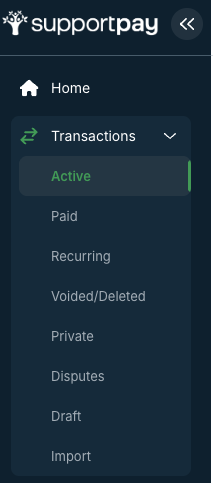
On the left bar, click on Transactions > Active
-
-
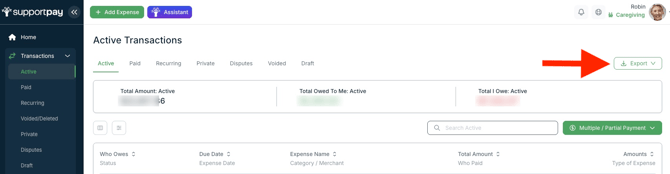
On the upper right, click Export
-
Select the file type
- XLS will download an Excel-compatible file. This file is also viewable in Google Sheets
- CSV will download a comma-separated value file. This is raw data, with no links to any attached files.
- PDF will download a PDF File. This is the best option that will provide links to any payment proof. We recommend clicking those links to download the files as soon as possible, as the links can expire
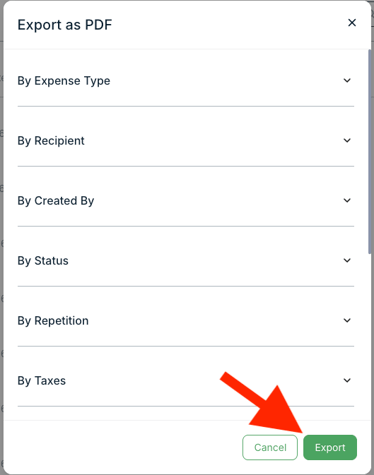
- An Export As window will pop up. You can filter the types of Expenses you would like to download. However, to download the complete history of Active Transactions (Unpaid) do not adjust filters and simply click Export on the lower Right of the Export As window.
- The file will download to your browser's Download Folder.
- Repeat these steps for each Transaction Type in the left Bar, if there is data in those transactions.
- Paid, Recurring, Voided/Deleted, Private, Disputes, Draft, Import.